StarStax is user friendly, free and multiplatform software you can use to make your star trail photography easier.
Created by Markus Enzweiler, you can download Starstax here. It’s available for free for Mac OS X, Windows and Linux.
You can create star trails in Photoshop, too. Or maybe you want to use Lightroom. So why do you have to use a specific software for your star trails?
The simple answer is that night photography is tricky. It involves taking calibration files and multiple images to stack together later on. This improves the image quality and the amount of data you can reveal with histogram stretching and other advanced editing techniques.
For star trails, in the era of digital sensor, it is best to take a big number of rather short exposures. Don’t take a single hours-long exposure.
This means that you have to combine tens, if not hundreds, of images. Lightroom can’t do that.
When it comes to Photoshop and similar software (Gimp, Affinity Photo, etc.), you can create star trails. But you have to load every image as a layer in the same document. Then manually subtract dark files from your images, and so on.
StarStax is nowhere near that complicated.
A lot of photographic software out there has complex and cluttered interfaces. Sliders, tools, layers, menus within menus, and so on.
In comparison, StarStax has a very simple interface. Check out the image below for details.
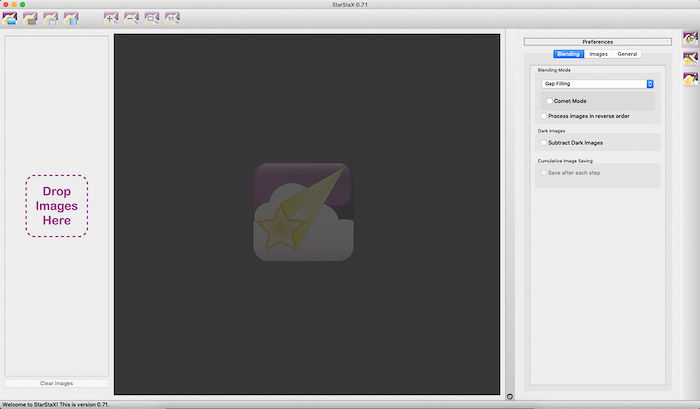
StarStax interface.
Before you start using this software, you should know that StarStax cannot read RAW files. Only JPG, PNG and TIFF images.
You’ll need to use a Raw Converter, such as Adobe Camera Raw or RawTherapee (free and multiplatform).
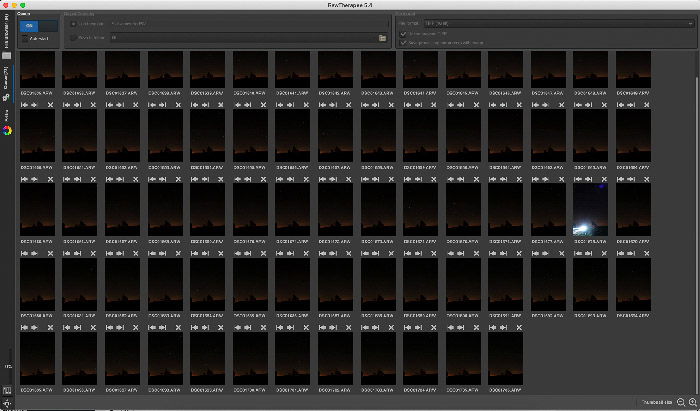
Converting my Olympus RAW files into 16-bit TIFF images with RawTherapee.
Once you have your images in a format that StarStax can read, it’s time to load them. Drag and drop all of them into the leftmost panel of the interface.
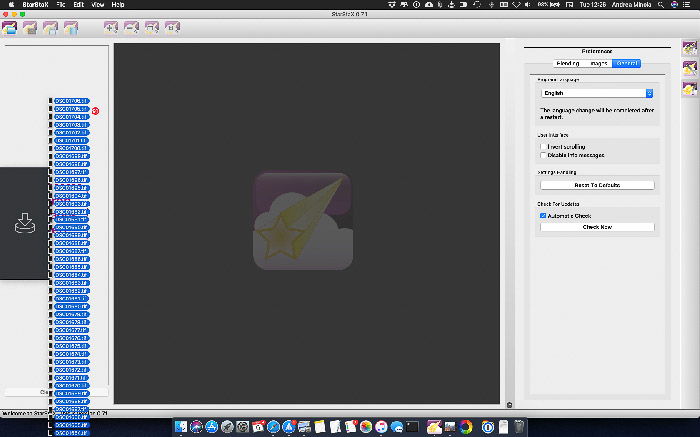
Loading images into StarStax.
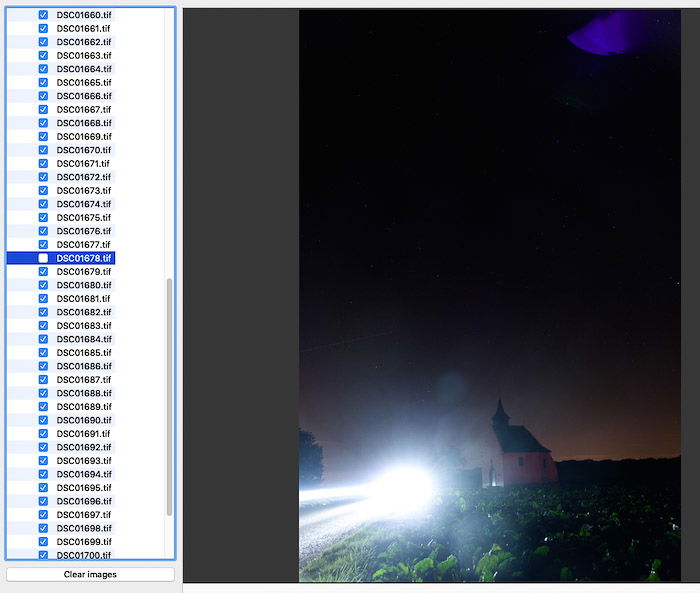
By Culling the images, you can deselect unwanted images, like this one.
Star trails images are created by blending the images in Lighten or Gap Filling modes. Lucky for you, Starstax acts as a blending software thanks to its many blending modes.
You can select the blending mode in the preference panel.
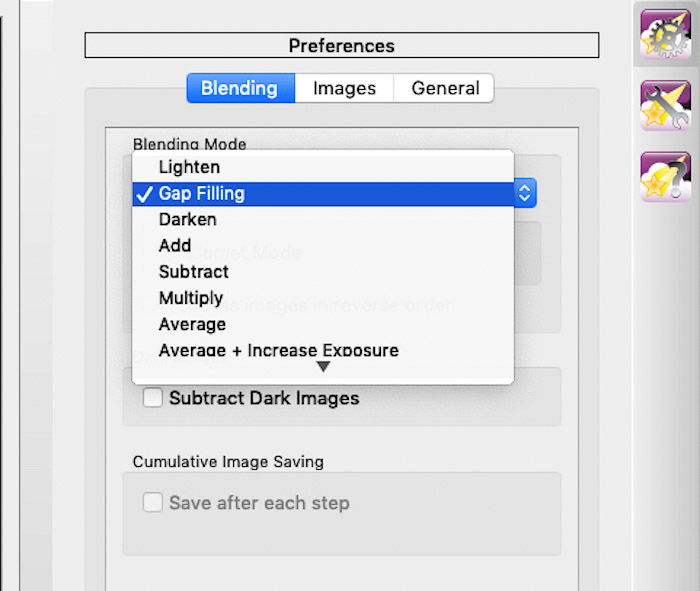
Blending Modes available in StarStax: for star trails, you have to use either Lighten or Gap filling blending modes.
Once you have selected the desired blending mode, you are ready to start processing the images to create the star trails.
Click on the Start processing icon in the toolbar and see the star trails forming before your eyes in real time.
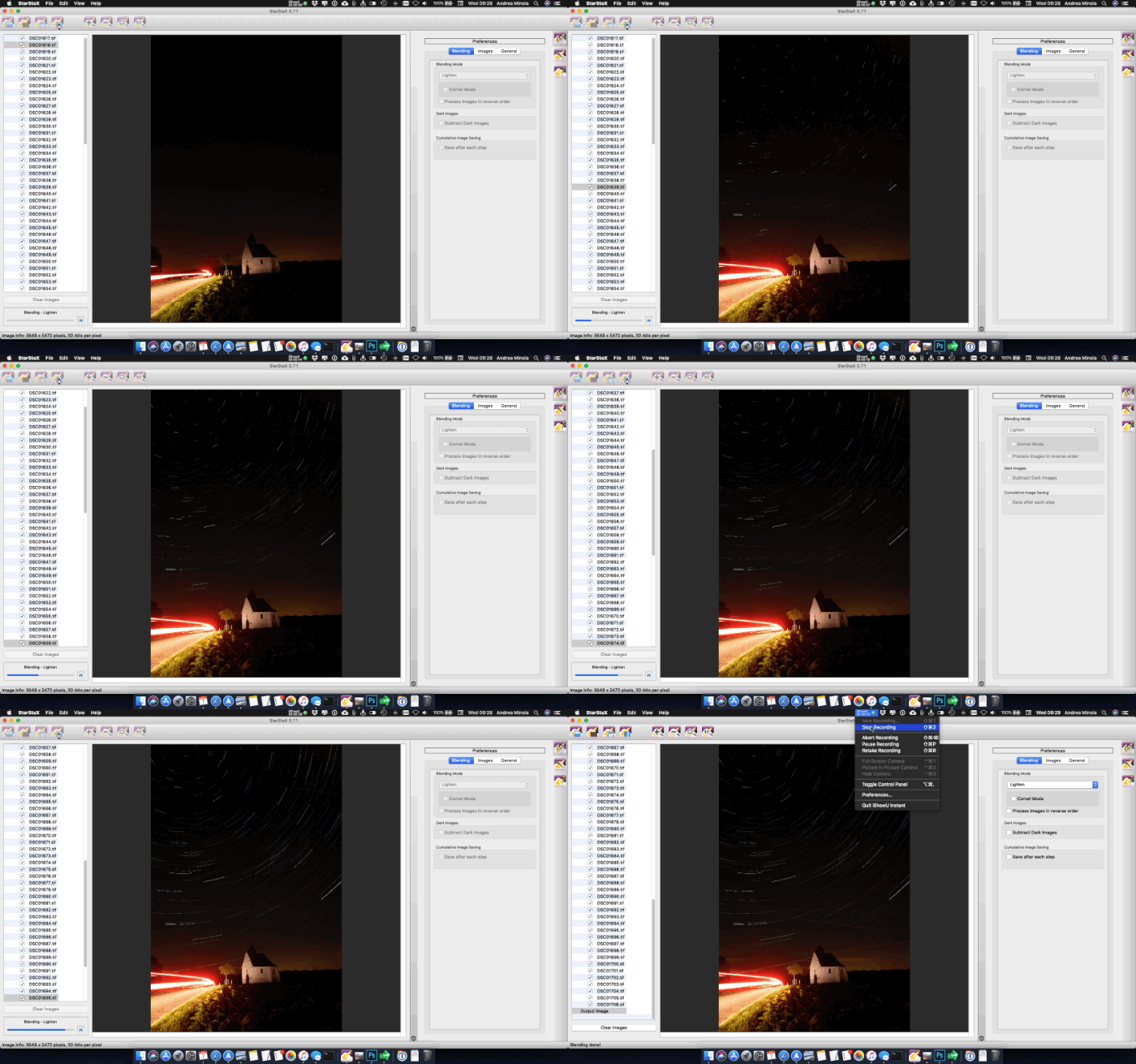
Processing the images and Star Trails formation.
If you selected the Gap Filling blending mode, StarStax will direct you to the Gap Filling preference panel.
There you will find two control sliders: Threshold and Amount. Threshold will select the the brightness of the pixels affected by the amount of gap filling.
When you set the threshold you will see that the affected pixels will be temporarily displayed in green. You can check the Show Threshold Overlay option to show the selection permanently.
A too low threshold will include the darker pixels of the sky or foreground.
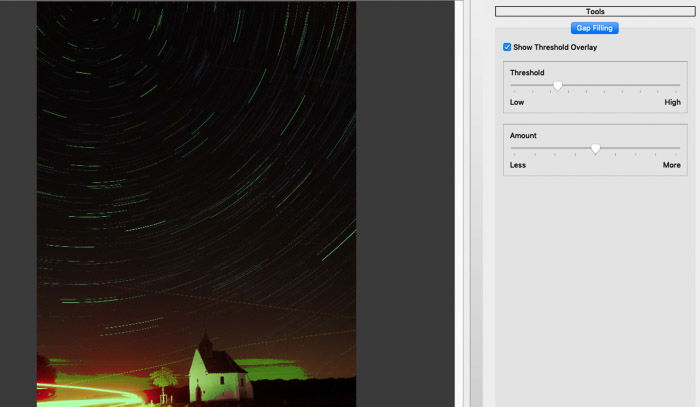
A low threshold will select many of the bright pixels in the image.
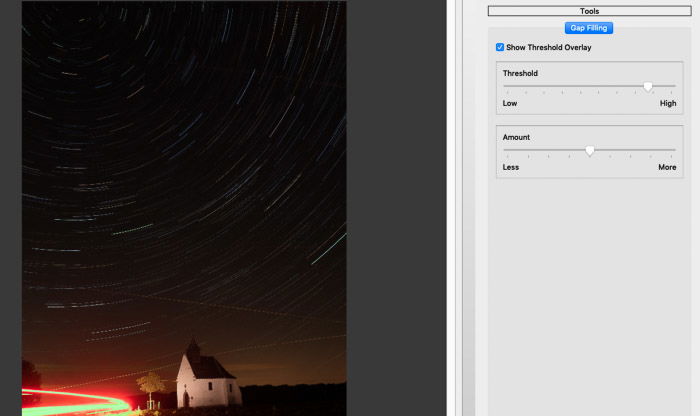
A very high threshold will select only few brightest pixels.
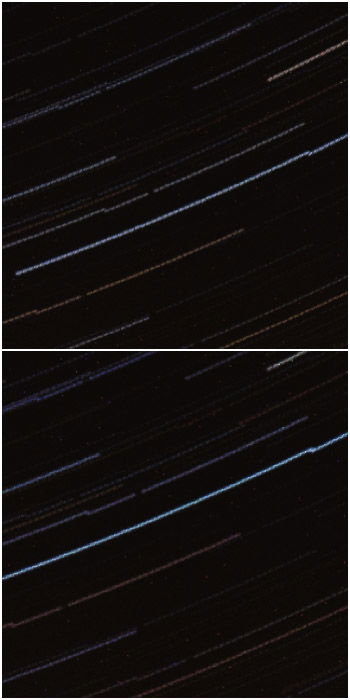
By increasing the amount of gap tilling (bottom) most of the trails looks smoother and gapless.
You can rework your star trails within StarStax as many times as you want. Try different settings for the Gap Filling blending mode, add the comet effect, etc.
When happy with the results, use the Save icon to save your final image.
By default, the image is saved as jpg. Manually adding the extension .tiff to the file name, will force StarStax to save your image as 8-bit tiff.
It’s not quite as powerful as 16-bit tiff. But it’s better then jpeg for further editing in, say, Adobe Lightroom and/or Adobe Photoshop.
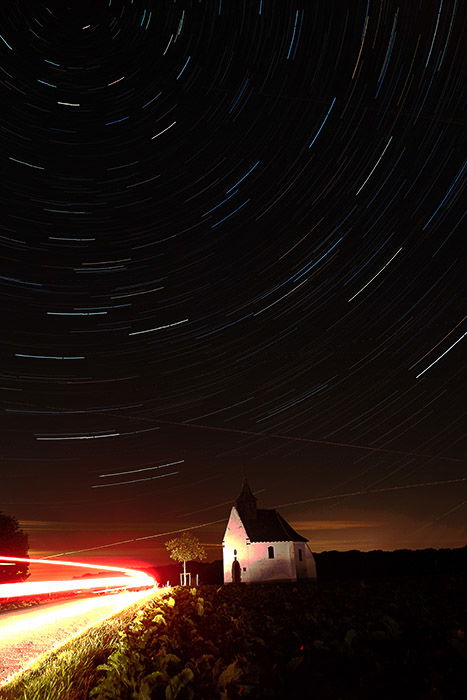
The final star trails.
The Average Blending mode can be used to reduce the digital noise in the long exposures. This is a good way to have noise free foregrounds, particularly if nothing move during your star trail.
The result of averaging all the images is that the resulting one, while cleaner, will be quite dark. In my image I lost the light trails from the passing cars and the chapel is not that visible.
The trick is not to used too many frames for cleaning the foreground. I usually take 10-15 images for this.
You can also use Average+Increasing Exposure to brighten up your averaged image to a specific EV number directly in StarStax.
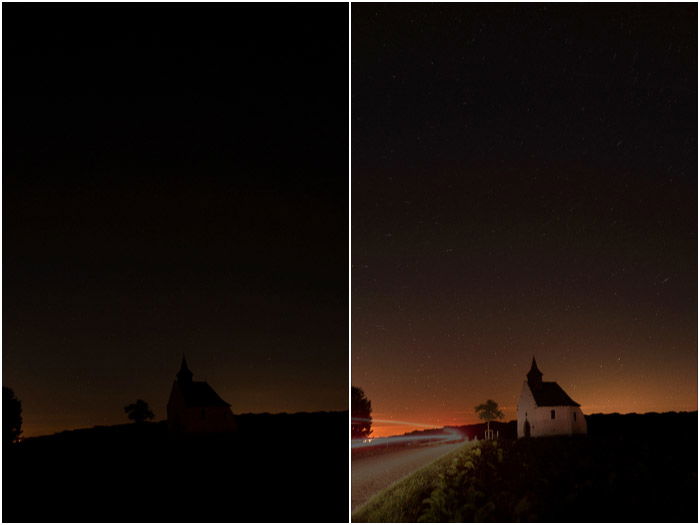
The result of averaging 10 images (left) compared with Averaging+increasing exposure (1EV) for the same set of images (right).
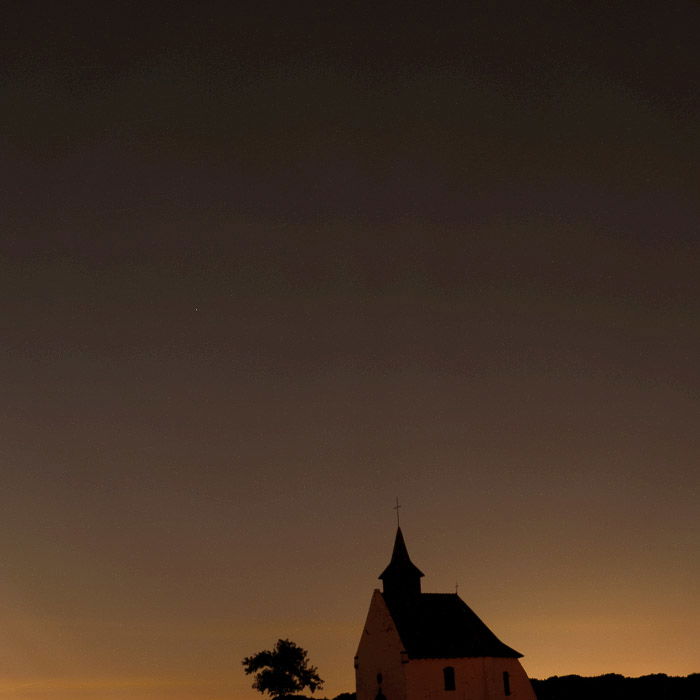
Some posterisation effect is visible in the sky.
I brought up Automatic Lens Correction at the beginning of this article. And I told you to disable Automatic Lens Correction when converting raw files into TIFF ones.
Automatic Lens Correction causes an unwanted pattern to show up in your final image. This happens when you use lighten blending mode, and a few other modes.
It looks like this.
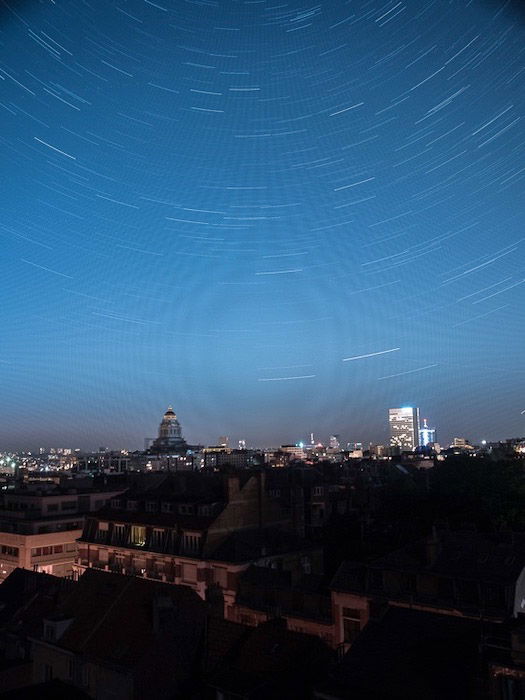
The unwanted patterns introduced by the automatic lens correction on the original files used to create the star trails.
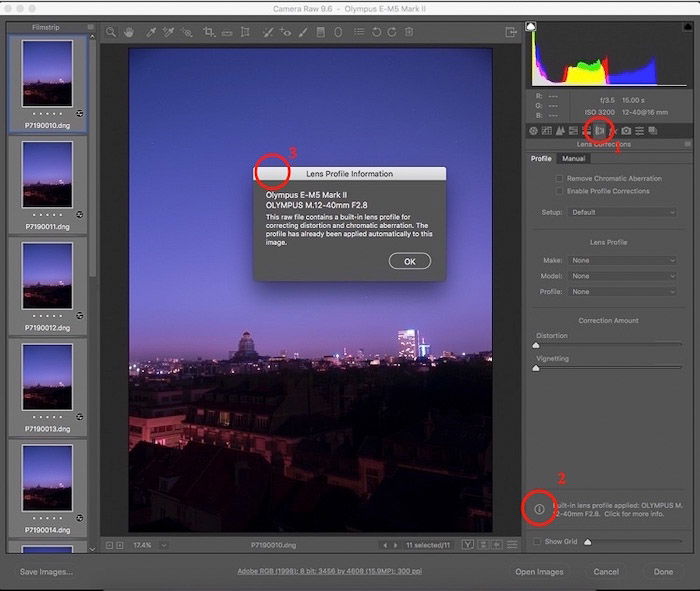
How to check if lens corrections has been applied in ACR.