Tag Archives: exposure

Take Fewer, Better Photos

Is this you? You don’t want to miss a potential photo thinking, ‘I can’t retake this, I better take lots of photos’, so you end up with a card full of duplicates and constantly put off processing them, because there’s just too damn many! They’re also not that interesting, and you’re having a hard time choosing which ones are best. Frustrated, but unable to realise what you’re doing wrong, you go and carry on shooting in the same way. This used to be me.

I know what the fear is. It’s not so much a case of , ‘what if I miss the shot?’, it’s a case of ‘what if my settings are wrong?’. If your settings are wrong, then there’s a chance that if you shoot in burst fire that you may capture a good image every second or third shot, but this is not what you should be focusing on. Clearly. Take Fewer, Better Photos

If you shoot on film much, you’ll notice that aside from the grain and image quality, the composition usually comes out a lot better. Why is this? Well when you shoot on film, you know the price of each photo that you take. (Film + development) ÷ exposures = cost per print. It’s about 20p for me, and that’s a pretty good price. The point is that every photo that I waste on burst fire, or retaking because I got something wrong, I’m not only wasting room on my film, but 20p at a time.

So how can I change the way I shoot?

Well clearly, I’m not getting too snap happy about nothing when I’m shooting on film, nor am I shooting without thinking first. That’s the biggest change, and the reason my photos come out so much better on film. I THINK a lot more before I shoot.

Shoot on Film

Shooting on film produces a feel that I personally can’t, nor do I care to, replicate using photoshop. The colours, image quality, and grain all stand out as reasons to shoot on film, but there’s even more reasons to do so. You think a lot about whether the shot is worth it, and there has been plenty of times in the past where I’ve not pressed the shutter release button, because it’s just doesn’t reach my personal standards. If it’s not worth it, I don’t capture it.

I take this thought process and personal standard, and I transfer it over to shooting on digital, regardless of the fact that I can take as many photos as I like. It cuts down my editing time, takes up less storage, prevents me from procrastinating about working on photos, and brings together better results overall. Take Fewer, Better Photos

Change from Burst Fire Mode

‘tchtchtchtchtchtchtch’ – That’s the sound of your shutter. Do you keep your camera on high-speed burst fire and take too many photos, when you would be better off thinking more and taking less? I know I have in the past. When you stick to single shot firing, the process of taking photos is different, because you have to think about whether you want to press the shutter, instead of holding it down for the sake of it. I don’t know about you, but I personally find it hard to just take one photos in high-speed burst mode, even when that’s all I want.

This will also change the way you focus, and provide more accurate results.

Learn your Focusing Modes

Most cameras have three different focusing modes:

One Shot / AF-S – This is the simplest of all of the focus modes and it does exactly what it says on the tin – it focuses for one shot. You would typically shoot on this mode when shooting a subject that’s not moving as the camera will only focus once when you depress the shutter button halfway. This is the mode that you would use if you wanted to use the focal lock of the camera, to focus on the subject and then move the camera, to recompose the frame. The camera will not focus again on this mode until you lift up the shutter button and depress it again.

AI Servo / AF-C - This is often referred to as continuous focus because it will focus when you partially depress the shutter, but will monitor movement in the frame and make any necessary adjustments in focus between the shots, without the need for removing your finger from the shutter button. This mode is useful if you’re going to be shooting moving subject, such as at a marathon and other sporting events. You would not be able to use the camera’s focal lock to recompose a shot in this mode, you’ll find that the camera will continually try to focus. Take Fewer, Better Photos

AI Focus / AF-A - This is probably the least understood mode and it’s actually a mixture of the 2 modes above. When the camera has only slight movement it will act as if it’s on One Shot / AF-S mode and will allow you to use the focal lock feature. When the camera detects movement, the focus mode will start acting like AI Servo / AF-C mode instead and track the subject. This may sound like the best focus mode to use, but I typically like to set to one of the other modes as I usually know what I’m shooting and what to expect. This mode does come in handy though when you’re shooting still objects that are like to move without much notice, such as a bird on a perch.

Knowing which mode is right for what you’re shooting is very important because it will help you to accurately focus more often, and prevent you from wasting photos.

Learn your Shooting Modes

Believe it or not, keeping your camera set to Full Auto mode, or even Program mode, is the worst thing you can do with your photos. The camera is guessing what it needs to do, and when you throw a spanner in the works, such as low light, or a fast moving subject, it starts to fumble around, completely messing up the exposure. Take Fewer, Better Photos

When you switch from an automatic mode, into one which gives you more control, you can start to make changes that the camera can’t think to do itself. Sure, it takes a little bit of time getting used to the differences, but you’ll soon pick it up. Let me give you an example:

If I’m shooting a fast moving object, I know that there’s a certain shutter speed I know I have to use, depending on the speed of the subject, and the effect I’m going for. I would either use shutter speed priority, or manual mode. Shutter speed priority will ensure that the motion is captured, and the aperture will set itself depending on the exposure. If I know that I want a certain depth of field too, then I will switch to manual so that I can change both the shutter speed and aperture (which controls the DoF), and then simply adjust my ISO for my exposure. Understanding your shooting modes will help you to take better photos with each exposure.

Stay away from auto modes.

Practice Exposure & Metering

When it comes down to it, it’s all about mastering your exposure and making sure that you capture the image with the first shot. The more you know about what you’re doing, the easier it becomes, and exposure is a huge part of this. For those that don’t know, have a look at the link to exposure topic linked above. It’s actually a few posts, and much more than I can write about here, but it’s worth mentioning that if you really want to take fewer, better photos, this is the place to start. Take Fewer, Better Photos

Metering is often underestimated with photography because it tells the camera how to react to the exposure, and which parts of the frame take priority over another. It’s like taking another step away from Auto when you take the camera off of Evaluative/Matrix mode, and switch to the likes of spot metering. The camera isn’t always right, but with time and practice, you should be.

Shoot In Raw

This is where fixing mistakes comes in. For those that don’t know, a RAW file is an uncompressed image, which allows you to make more changes after the image has been captured, such as white balance, and exposure. JPEG’s will also do this, but nowhere near as well. If you’re shooting in RAW, it provides you with some wiggle room, so you don’t have to worry so much about the exposure, or the white balance, and you can focus more on your shooting. Obviously this isn’t something you should ever rely on, and don’t start saying ‘I’ll fix it in post’, but it will take some of the strain off while you’re still learning. Take Fewer, Better PhotosTake Fewer Better Photos1 Take Fewer, Better Photos

A Photo Glossary Of Post-Processing Terms

Introduction to Post-Processing Terms

I’ve stated before on multiple occasions that I don’t use photoshop to process my images, but I do use Apple’s Aperture to make some minor adjustments to them. It took me a while from when I first started out, to really understand how to fully utilise the software and to work out what all the major settings did. Hopefully, with the help of this tutorial, you should learn exactly what each step does and how to use them to your advantage.

Walkthrough

First off, lets have a look at how Aperture looks when we open it up – notice the order in the image below. The order that they’re listed is not random, they’re put this way because certain adjustments will effect others, and that’s why you’ll find other software such as Adobe Lightroom will also use a similar order. If I were to change the brightness first, that would obviously make it harder for me to adjust the exposure, so it’s best to stick to the order that they’re listed in, and that’s the order in which we’ll be learning about them.Processing Options 208x300 A Photo Glossary Of Post Processing Terms

Before we look at what each of them do, have a look at my orignal photo below as a point of comparison for each adjustment. I undo each adjustment after each step so that you can clearly see what happens to the photo.Original A Photo Glossary Of Post Processing Terms

White Balance

I’ve spoken in white balance before in great detail which can be found by clicking on that link, but this is first on the list because it changes the overall colour of the image. You’re given a temperature gauge to work with and you can make the photo hotter (yellow/orange) or colder (blue) depending on how you want the photo to look. In this situation, I might make the photo slightly warmer, but I did a pretty good job in the camera. Here’s what the photo looks like if you turn up the heat. You’re also given a tint tool which tints the colour from green to pink for smaller adjustments.WB 1 A Photo Glossary Of Post Processing Terms

Exposure

This will have the same effect as if you were to expose your photo for a longer or shorter time. It’s similar to changing the brightness, only it does it in a much more intelligent way. It treats the whole photo as if it was equal, and turning up the exposure, lightens the photo. I’ve actually turned down the exposure on this photo though, which is common when you’re shooting with an off camera flash, into the sun.Exposure A Photo Glossary Of Post Processing Terms

Recovery

This is a useful tool if you’ve got some areas of the photo which you’ve overexposed and want to repair, like the sun in the sky. It’s pretty good at recognising which parts are blown out, but I don’t tend to need to use it too much, and it’s not made a huge difference to the photo below. You may notice that the sun behind the model’s head and the lighter areas of her have have had their highlights turned down.Recovery A Photo Glossary Of Post Processing Terms

Black Point

When you raise the black point, you’re effectively making the dark parts of the photo even darker. You can turn this the other way, but I very rarely use that. If you pay attention to your histogram much, you’ll notice that the graph is moving towards the dark (left) side, but be careful not to let it go the whole way or you’ll start to lose definition. I use this function quite often because it’s a lot more subtle than the contrast tool.Black Point A Photo Glossary Of Post Processing Terms

Brightness

This takes the brighter parts of the photo and makes them even brighter, much like what black point does for the darker parts of the photo. Again, you need to watch your histogram to make sure that you’re not losing details, but you should be able to do this without looking really. If you were to turn up the brightness and the black point, you would effectively be turning up the contrast.Brightness A Photo Glossary Of Post Processing Terms

Contrast

I do use contrast, but in very small doses as it tends to be very obvious when it’s used, and I prefer my processing to be subtle. The photo should stand up on it’s own elements, not the post-processing. Contrast will make the darker parts of the photo darker and the brighter parts, lighter. This is very handy if you want your photos to be more punchy, but watch that you don’t overdo it as it can start to look unrealistic. Overall though, a very nice effect.Contrast A Photo Glossary Of Post Processing Terms

Definition

This does exactly what it says on the tin, only I’ve overdone it in the photo below to help show you what I’m talking about. It defines some of the details in a similar way to sharpening the photo does, only it tends to work best on underexposed parts of the photo and bring them out better. I don’t tend to use this tool to be honest, I prefer to brush on sharpness where I need it.Definition A Photo Glossary Of Post Processing Terms

Saturation

This is actually a very useful tool as it has the ability to make the colours much more punchy, and although I’ve purposely overdone it in the photo below, it can look really good. The photo that I’m using doesn’t really need too much done saturation because the colours were already pretty good, but on overcast days, this tool can prove to be invaluable as you turn drab and uninteresting photos into something much more visually appealing.Saturation 1 A Photo Glossary Of Post Processing Terms

Vibrancy

This is another form of saturation which helps to make the colours more interesting and punchy. I tend to use this when making minor adjustments as the effect is much more subtle than using the saturation slider and the photos ends up looking much more natural.Vibrancy A Photo Glossary Of Post Processing Terms

Highlights

This is found in the Highlights and Shadows section, and it’s a good way of recovering overexposed parts of a photo and bringing them back into detail. The only problem with this tool is that when I use it, I tend to only want to use it on a certain part of a photo and not on the whole photo, such as over facial features, so I’m left trying to find a middle ground. Still though, it’s a very powerful tool to have at your disposal.Highlights A Photo Glossary Of Post Processing Terms

Shadows

This is the same as highlights, only the complete opposite. It will take the shadows of the photo and make them brighter, providing more detail. A good tool, but to be used sparingly in my opinion. When you over use it like I’ve done in the photo below, it has a tendancy to look too much like an overdone HDR photo, with all the highlights lost. I use this very rarely when I need to fix a photo that I didn’t get right in the camera.Shadows A Photo Glossary Of Post Processing Terms

My Processing

Here’s my processing of the photo that we’ve been using and you’ll see that I’ve used very small changes. I make the photo slightly warmer with the white balance, and slightly darker with the exposure, while bringing in the black point and a small bit of brightness. The contrast and saturation were turned up only a very small amount and these helped to make the photo pop out a little bit more. As you can hopefully see, small, subtle changes are key to excellent post-processing.Processed A Photo Glossary Of Post Processing Terms

I hope you’ve enjoyed reading this, I encourage you to come and say hi over on Facebook. Thanks, Josh.

Instagram, Hipstamatic and Other Reasons Photography Is Starting To Suck

Introduction

It’s not all bad, and there’s no reason to think that good photography can’t be done on an iPhone, it’s purely the effects that these apps are having on the mind of a potential photographer. People start to think that because it looks quirky and old looking, that it’s good photography, which is holding back potential greatness from photographers.

Why It Sucks

If you’ve followed my blog for a while, you’ll know by now that I’m not really a big fan of photoshop; that much is clear from just looking at my photos. That’s not to say that I don’t do anything to them, because I do adjust exposure, contrast, black point, and clean up skin quite regularly, but I never use it as a tool to make a boring photo interesting. A good photo will stand up on it’s own without the need for photoshopping, but it can be used to make small adjustments to make it better. You can adjust a bad photo until the cows come home, but it’s still going to be a bad photo.

If you’ve ever tried to take a photo everyday, similar to a 365 project, you’ll understand that it’s a pretty hard thing to keep up and it starts to loom over you everyday. I attempted one with my digital SLR, and it was even harder because it meant either going out everyday and taking photos, or having lots of photos of my dog. If you take it seriously, and have the time to complete them, you will find that your photography improves, but for the majority of people, it’s too much like hard work. The good thing about the project was that it encouraged me to carry my camera with me everywhere which meant that I was taking more photos which turned out good, but I ultimately didn’t have time to use it everyday and ended up producing a lot of rubbish too.

Apps such as Instagram take the idea of a daily photo blog and turn it into an iOS app for your iPhone, iPod Touch and iPad and throw in a bunch of filters in there for good measure. You can get some good results from your iPhone, but as I said before, photoshopping for photoshopping’s sake is not a good thing. Currently, Instagram have 150 million photos uploaded, that’s 15 going up every second, with a staggering 80% of using filters (and a bunch more in the other 20% have had filters applied in other apps, such as Hipstamatic). The pressure of trying to get a good photo by the end of the day invariably leads to poor content and composition of everyday life, enhanced by obvious digital filters. This is doing photography no good whatsoever.

These photos are then shared through Facebook and other means where the photographer receives praise for their work. Now, I have no problem with this as it is, but what’s not good is when people start to see this as photography, as they’ll never learn how to really improve on the artform, which they may have otherwise been interested in. To help you understand what I’m getting at, I’m going to show you a couple photos that I took, both of which I like, but I consider one to be much better than the other.

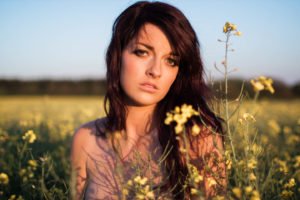
Here’s a photo of my friend who’s a model. Now, there’s no mistaking that she’s very attractive and there’s no denying that the lack of clothes make the photo much more interesting. There are some good techniques used in this photo, such as fill flash and shooting into the sun, but the main reason to be attracted to this photo is the beautiful model.suck Instagram, Hipstamatic and Other Reasons Photography Is Starting To Suck

Compare the photo above with the photo below and you’ll see a stark difference – I could speak for ages about why this photo is good, listing elements such as triangles, colour, grain, contrast, form, lighting, visual weight, eye lines, rule of thirds, etc. I’ve learnt how to take photos like this from studying composition and technique, practicing on film and understanding my camera. I consider this to be a far better photo.suck 1 Instagram, Hipstamatic and Other Reasons Photography Is Starting To Suck

If I were to only ever take photos of half naked girls in fields, I’m sure that I would gain a lot of recognition, but my photography wouldn’t improve a whole lot. When you take time to study photography, you’ll find that you start to take it all in without even realising it. The photo above was taken in the mens room of a local pub (but don’t worry, it’s a friend of mine), and as I walked in, I saw the shot in the mirror and lifted up my camera, at the same time he looked up and I captured the shot. When you know your way around even the most basic of composition, it really does become that easy with a bit of practice.

That’s the thing about iPhone apps that appear to do all the work for you, they make you think that what you’ve created is something special, when in reality, it’s just an excuse to rearrange a bottle of gin, a porcelain model of a dog, tilt the camera and apply some dodgy filters to make it look 50 years older than it actually is. I encourage anyone who’s trying to take photography seriously to start learning composition and put down their phones. Instagram, Hipstamatic and Other Reasons Photography Is Starting To Suck

On top of that, if you do want to try to improve your photography, start a 365 project where you have to take a photo everyday. It’s tough and you may find you’re producing a lot of bad shots, but that’s what these projects do; they force rubbish and inspire greatness – just don’t share these bad shots. The most important thing to do with your photography though, is to go into it, looking to only please yourself. If you spend you’re whole time trying to impress others, or compare your work to other people’s, you’ll never be happy with your own results.

I’ve had this little rant inside of me for a while now and I’m glad I finally managed to get it out. I would encourage everyone who’s managed to get this far into the article to click on the links throughout the page and start learning more about photography. As always, I encourage you to come and join my Facebook page where I have more discussions and photos which don’t make it onto here.Instagram Hipstamatic and Other Reasons Photography Is Starting To Suck Instagram, Hipstamatic and Other Reasons Photography Is Starting To Suck

How to Take Awesome Twilight Portraits

Introduction to Twilight Portaits

This post is all about showing you how to take great photos during twilight, in very low light. This may not sound particularly difficult, but I assure you that if you try to shoot in auto mode, or even a priority mode then you would massively struggle to produce the same results. It’s not hard when you know what you’re doing, and that’s exactly what I aim to achieve from this post.

Step 1 – Test Shot

When ever I’ve found a location that I want to use, I always take a test shot on a setting I think might work and go from there. A lot of the time when I’m in a lighting situation that’s changing or I’m not familiar with, these photos come out pretty poorly, particularly like below when I’ve not got a flash out yet. This test shot was not to see what the photo would look like if I didn’t use a flash, I knew I was going to have to use one, It was to test the exposure of the ambient light in the background.

When I take photos at night with models, I always want to include some ambient light in the background so that the photo is more interesting. After all, who says a pixel on the face is more important than on the background. The settings used for the photo below are ISO 1000, at f/2.8 for 1/30 of a second, which is about as short as I can hold the camera steady for at a 24mm focal length.Keira Shoot 10232 How to Take Awesome Twilight Portraits

Step 2 – Flash

For the next step, I added a flash, and after a bit of fiddling around I found a setting I liked. The only problem was that the flash exposure was turned up 1 ev and the aperture was slightly narrower at f/4 with a shutter speed of 1/40, which was allowing less ambient light in. I liked how the light from the flash was looking, but it was clear that I was going to have to change some of the settings with the exposure.

To create this shot, I used a special diffuser, but it can be easily created with a regular flash and a cheap £4 diffuser. Before we go any further, it’s important that you make sure you set your flash to high speed sync, which allows it to work differently and at much higher shutter speeds. Without this setting on, my flash will only work to 1/250 of a second. My flash is also set up wirelessly and will require some sort or transmitter, and you can read all about that hereKeira Shoot 10230 How to Take Awesome Twilight Portraits

Step 3 – Flash Diffusion

The reason I asked a model to come and take photos with me was because I wanted to test out my new beauty dish and grid cover. A beauty dish sends out indirect light which is bounced around the dish before illuminating the subject. The grid that goes in front takes this soft light and forces the light through the holes in the front into a straight line and over my subject. The result is this soft light which still allows the model to have natural shadows on her face and body. The end result in my final photo makes the light look as it it’s come from a long way away, from a much larger, yet soft light source, when all it really is a wireless flash and less than £100 worth of gear. Keira Shoot 10228 How to Take Awesome Twilight Portraits

Step 4 – Exposure

To allow more light in, I kept my ISO on 1000, at f/2.8 for 1/30 of a second. Clearly, this allowed more light in than before, but because the photo was too dark, this made the grain much more noticeable. The thing about digital grain is that you’re left with uneven colour with an almost grey and red tinge to it. This is no good for the type of photo that I’m trying to achieve, which is supposed to be soft lighting, plenty of ambient light and plenty of clean, soft and sharp features on the model. To try to find a compromise between the flash light and the ambient light in step 2, I reduced the flash exposure down 2 stops to -1ev. This didn’t work quite as well as I had planned, but it’s all part of the process. Keira Shoot 10231 How to Take Awesome Twilight Portraits

Step 5 – Exposure 2 & Background

As you can see, the grain in this photo is a world of difference to the photo above, and that’s because I changed my lens to a f/1.4 prime lens that allows 4 times more light into the lens when it’s set to its maximum aperture. This allowed me to lower my ISO to 640, and on top of that, I slowed my shutter speed down to 1/6. The reason I was able to get away with such a slow shutter speed was because the initial burst of flash was powerful enough to freeze most of the motion and any movement in the darkness struggled to shine through. You will notice however that there is a little bit of movement on the right side or the face, which I fixed by raising the shutter slightly in the next photo.

Keira Shoot 10229 How to Take Awesome Twilight Portraits

Step 6 – Positioning & Background

From examining my photo above, I decided that I wasn’t entirely happy with the lighting the background because the light all seemed to blur into one, so I rotated my model and my positioning to capture the lights that went along the pier. The same settings as before were applied, except I raised my ISO to 800 to account for my slightly higher shutter speed of 1/6 of a second. Even though this photo was shot at f/1.4, I was able to keep the photo looking sharp because I very carefully focused on the model eyes, which is where your eyes are drawn. The rest of the photo, particularly the skin looks very soft, because it is soft. This combination works really well at night as it produces a great effect, while allowing me all the light that I need to work with.

The final settings for this photo were ISO800, f/1.4 at 1/6 of a second with the flash power boosted to +1ev. If you would like to learn more about how I processed this exact photo, then I go into detail about it in this post hereKeira Shoot 10227 How to Take Awesome Twilight PortraitsHow to Take Awesome Twilight Portraits How to Take Awesome Twilight Portraits